Section 3: FortiGate Preparation
3.1 Access the FortiGate GUI
In the Amazon EC2 console, select Instances.
Locate the FortiGate instance created by your CloudFormation stack.
Record the following values:
- Public IPv4 address
- Instance ID
Open the FortiGate GUI in your browser:
texthttps://<FORTIGATE_PUBLIC_IP>Replace
<FORTIGATE_PUBLIC_IP>with the public IPv4 address of your FortiGate instance.
TIP
The FortiGate GUI may take several minutes to become available after the CloudFormation deployment reaches CREATE_COMPLETE.
Certificate warning
Your browser may display a security warning because FortiGate initially uses a self-signed certificate.
Confirm that the address in your browser matches the FortiGate public IPv4 address before continuing.
3.2 Complete the Initial Login
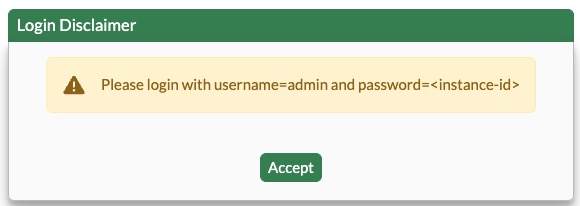
Log in using the following credentials:
Field Value Username adminInitial password FortiGate EC2 instance ID Example initial password:
texti-0a1b2c3d4e5f6g7h8Select Login.
When prompted, set a new administrator password.
Important
Do not continue using the EC2 instance ID as the administrator password.
Create a strong password and keep it available for the remainder of the lab.
- Complete or dismiss the initial setup wizard as appropriate.
3.3 Retrieve the FortiGate Licensing Information
Return to the lab credential portal and locate the following values assigned to your Student ID:
- FortiFlex Token
- FortiGate Serial Number
Keep the credential portal open while completing the licensing process.
Important
Use only the FortiFlex token assigned to your Student ID. Do not use or share another student's token.
3.4 Activate the FortiGate License
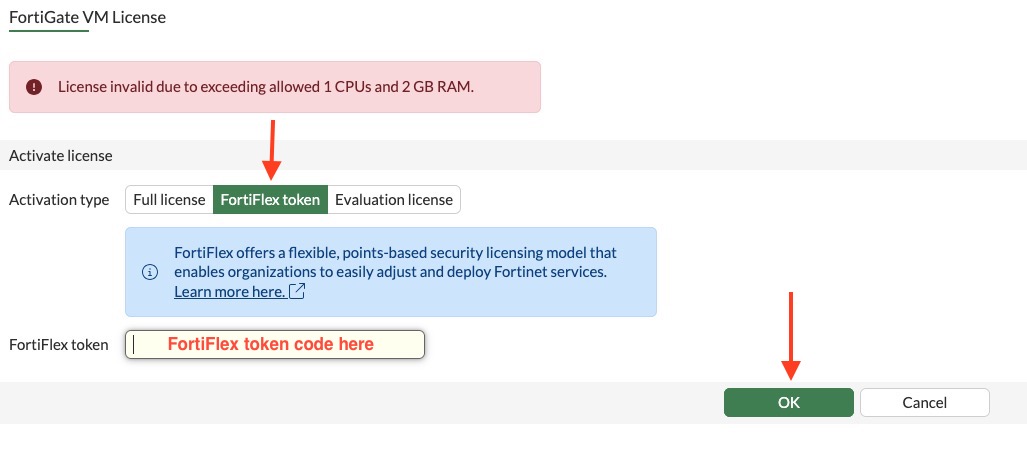
In the FortiGate GUI, select the token-based licensing option.
Enter the FortiFlex Token displayed in your credential portal.
Submit the token to activate the FortiGate-VM.
Confirm the reboot when prompted.
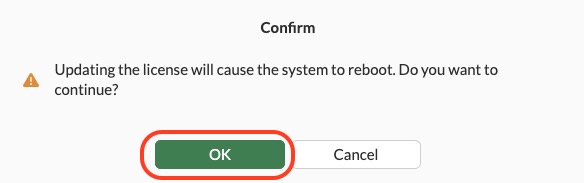
Allow several minutes for FortiGate to restart.
WARNING
The FortiGate GUI will be temporarily unavailable during the reboot.
Do not repeatedly refresh the page. Wait several minutes, and then reconnect using the same URL:
https://<FORTIGATE_PUBLIC_IP>Log in again using:
Field Value Username adminPassword The administrator password created in Section 3.2
3.5 Verify the FortiGate License
After logging in, confirm that FortiGate displays:
- A valid license status
- A FortiGate serial number
- Active FortiGuard service information, where applicable
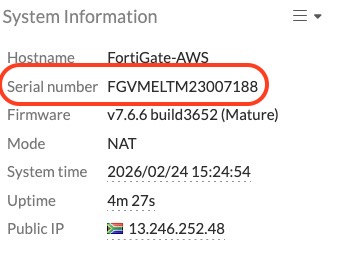
Compare the serial number displayed by FortiGate with the FortiGate Serial Number shown in the credential portal.
WARNING
If the displayed serial number does not match the serial number assigned to your Student ID, stop and verify that you used the correct FortiFlex token.
3.6 Verify the FortiGate Interfaces
Confirm that the deployment automation mapped the FortiGate interfaces correctly:
| Interface | Purpose |
|---|---|
port1 | WAN interface connected to the public subnet |
port2 | LAN interface connected to the private subnet and AWS Transit Gateway traffic path |
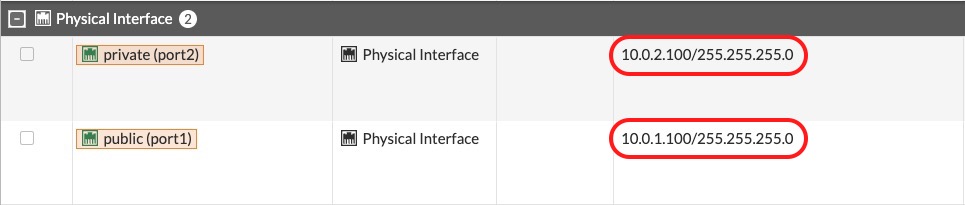
Verify that both interfaces are enabled and display the expected IP address information.
INFO
The exact IP addresses are assigned by the CloudFormation template and may differ between student environments.
3.7 Verify the Preconfigured Egress Policy
Confirm that the firewall policy used for Ubuntu VM Internet access is already present and enabled.

Verify the following:
- The policy is enabled.
- The source interface corresponds to the private or Transit Gateway traffic path.
- The destination interface corresponds to the FortiGate WAN path.
- Network Address Translation is enabled where required.
- Logging is enabled so that traffic can be verified in Section 5.
WARNING
Do not modify or delete the preconfigured policy unless instructed to do so during the workshop.
Next Step
Continue to Section 4: FortiGate AWS SDN Connector.