Section 4: FortiGate AWS SDN Connector
4.1 AWS SDN Connector Overview
The FortiGate AWS SDN Connector integrates FortiGate with AWS and retrieves dynamic cloud attributes such as:
- EC2 instance IDs
- Private and public IP addresses
- AWS resource tags
- Subnet IDs
- VPC IDs
- Security groups
These attributes can be used to create dynamic FortiGate address objects and firewall policies.
Using dynamic cloud attributes reduces manual configuration and allows security policies to adapt when AWS resources are added, removed, or updated.
INFO
The CloudFormation deployment assigns an AWS Identity and Access Management (IAM) role to the FortiGate EC2 instance.
The Use metadata IAM option allows FortiGate to use the permissions assigned to that instance role instead of storing AWS access keys in the FortiGate configuration.
4.2 Create the AWS SDN Connector
In the FortiGate GUI, go to:
Security Fabric > External Connectors
Select Create New.
Select Amazon Web Services (AWS).
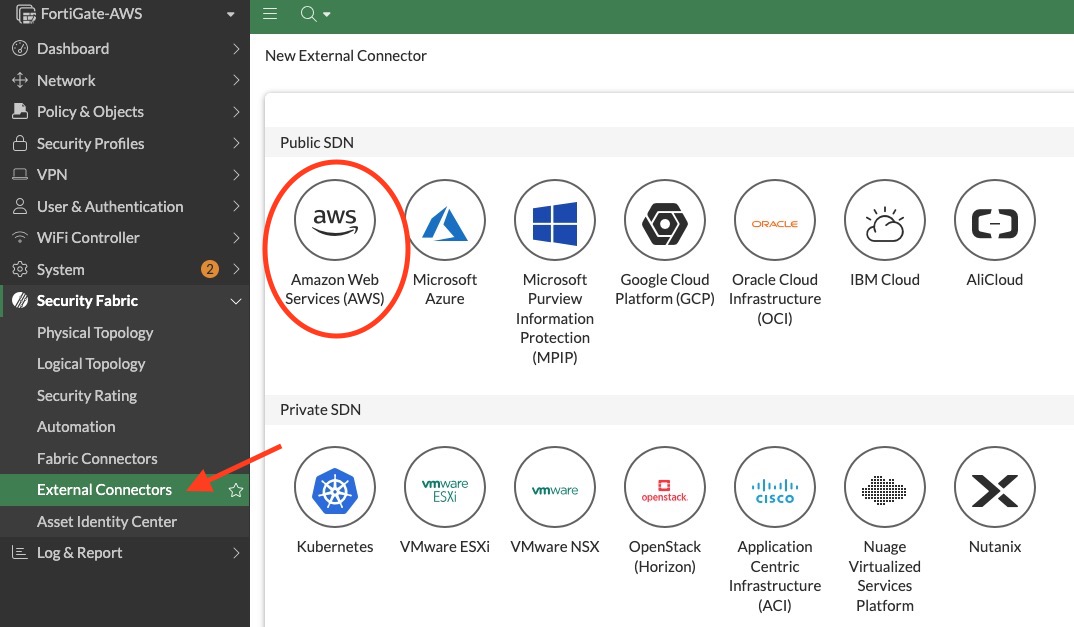
Configure the connector as shown in the lab screenshot.
Enable the following options:
- Use metadata IAM
- Alternative resources
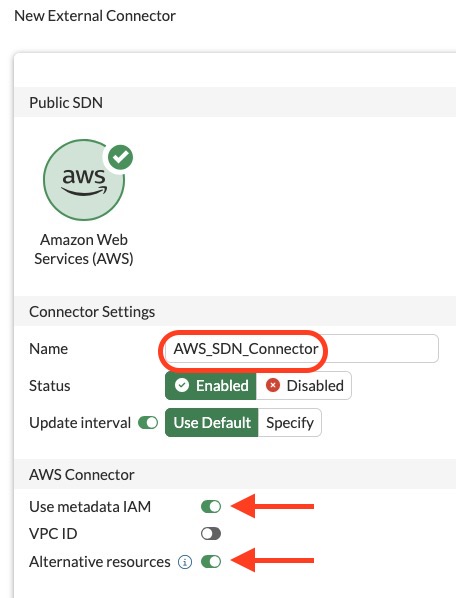
Select OK or Apply to save the connector configuration.
WARNING
Do not manually enter the temporary AWS access key ID or secret access key from the credential portal.
The FortiGate instance must use its assigned IAM role through the Use metadata IAM option.
4.3 Verify the Connector Status
After saving the connector, allow a short time for FortiGate to communicate with the AWS API.
Confirm that the connector displays a successful status, such as:
- Connected
- Available
- Up
The exact status label may vary depending on the FortiOS version used in the lab.
TIP
If the connector does not immediately show a successful status, wait approximately one minute and refresh the page.
4.4 View the Discovered AWS Objects
Right-click the AWS connector.
Select View Connector Objects.
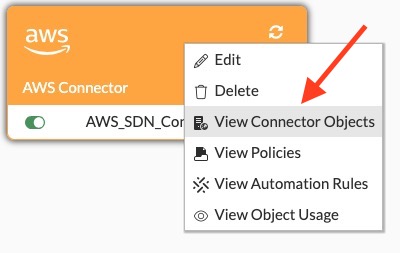
Confirm that FortiGate retrieved AWS resources and attributes, including:
- EC2 instance IDs
- Private IP addresses
- Public IP addresses, where applicable
- AWS tag keys and values
- Subnet IDs
- VPC IDs
- Security groups
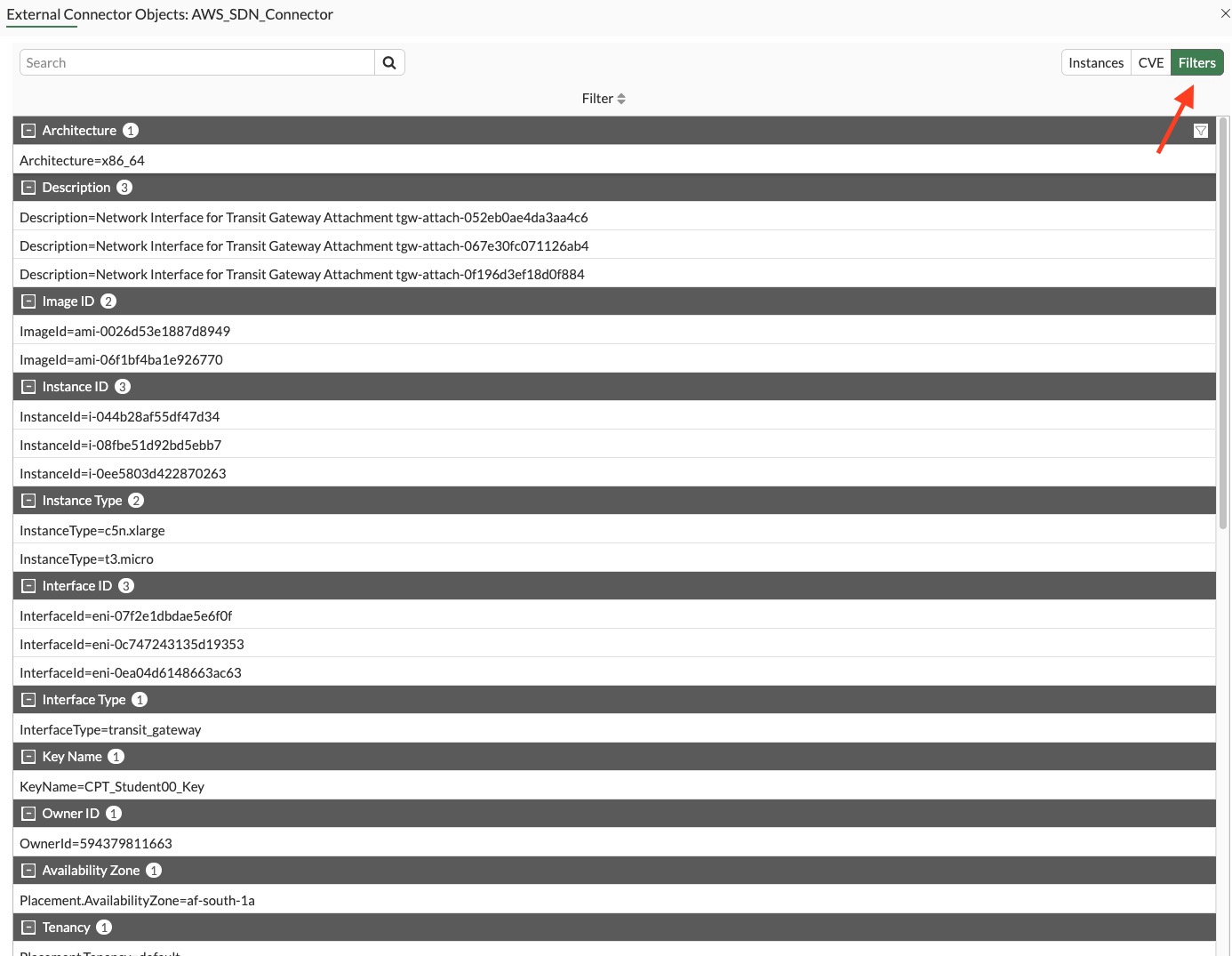
INFO
The objects displayed depend on the resources deployed in your student AWS account and the permissions assigned to the FortiGate IAM role.
4.5 Troubleshooting
If the connector does not display any AWS objects, verify the following:
The connector is configured with Use metadata IAM enabled.
The connector shows a successful connection status.
The FortiGate instance has the IAM role assigned by the CloudFormation template.
The FortiGate can reach the required AWS API endpoints.
The AWS resources have finished deploying.
You are viewing resources in the correct AWS Region:
texteu-central-1The IAM role includes permission to retrieve the required EC2, VPC, subnet, tag, and security group information.
WARNING
Do not add broad AWS permissions or administrator access to the FortiGate IAM role as a troubleshooting shortcut.
Use only the permissions required for the SDN Connector.
Next Step
Continue to Section 5: Traffic Inspection.